All your apps.  All your data.  Secured and available.  Anywhere.  Any time.

Spam Filters for Outlook 2003/2007

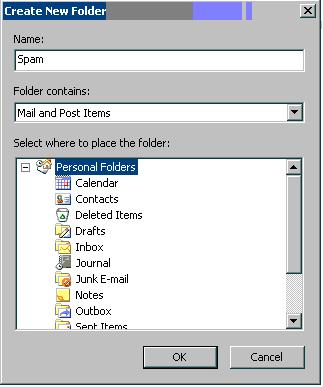
First, create a folder to hold incoming SPAM. Open Outlook, click on your Inbox folder and select File, New, Folder. Enter a descriptive name for the folder (for example, Spam) and specify the location with the Select where to place the folder box. I recommend that you select the top level of your e-mail folders (usually named Personal Folders or Mailbox -).


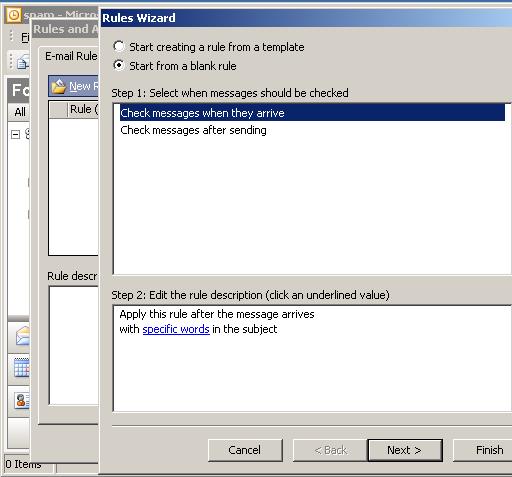
Open Tools, Rules and Alerts. Click the New Rule button to create a new rule. Then follow these steps:

  • Select Start from a blank rule , Check messages when they arrive, and click Next >
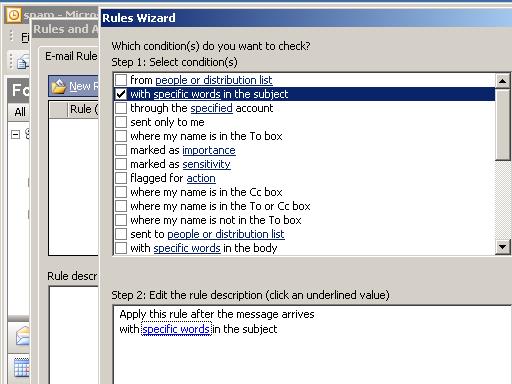
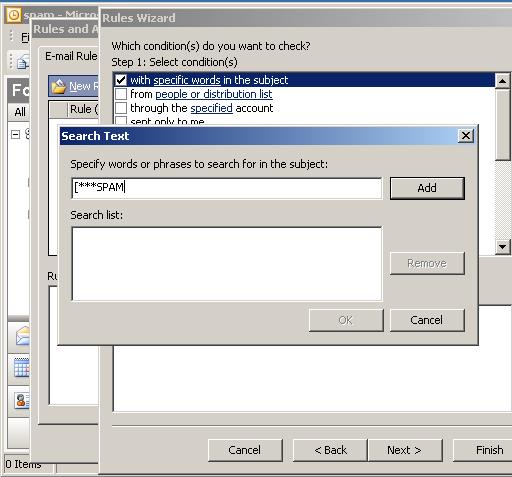
  • Check the box with specific words in the subject. Click on the specific words link in the Rule Description box. Enter [***SPAM, click the Add button, then OK. Click Next >


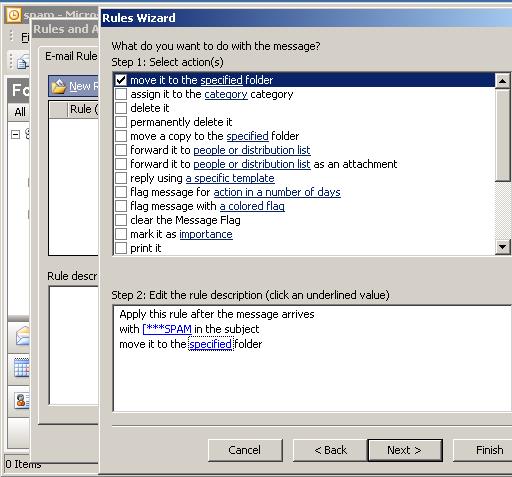
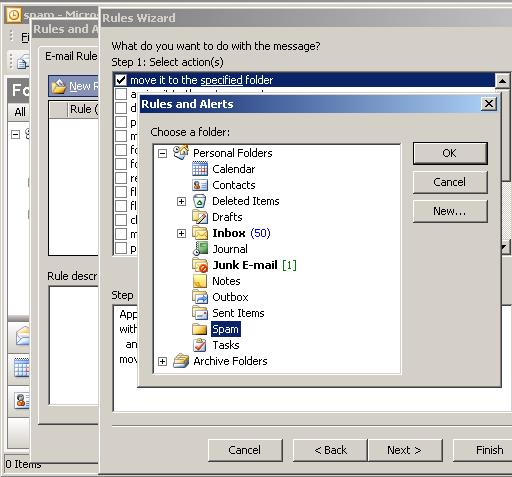
  • Check the box move it to the specified folder, then click the word specified in the Rule Description box. Select your Spam folder from this list and click OK. Click Next >


  • The next panel allows you to specify exceptions to the rule. Go ahead and click Next >
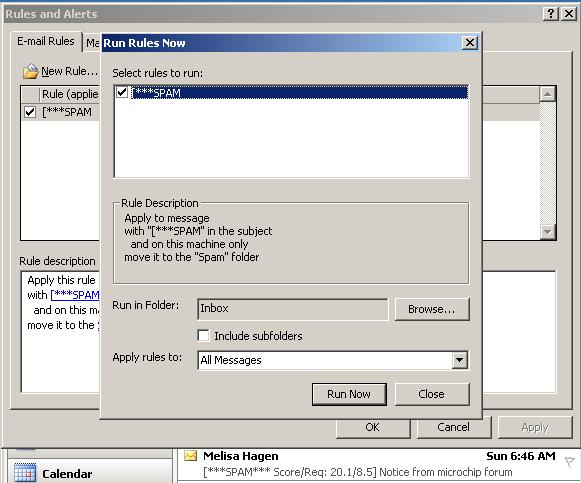
  • The next panel shows your list of rules. Make sure your new rule is checkmarked and then click Run Rules Now.
  • Make sure your rule is checkmarked and click Run Now. The rule will run and move all the spam in your inbox to the spam folder.

  • From now on all incomming mail marked as [***SPAM will go into your Spam folder.
  • Click OK to close the Rules Wizard.

    Periodically check your Spam folder for unsolicited messages, and empty it as needed.